
Camera Connect: Your Complete Guide to Wireless & App Control
Unlock the full potential of your camera. Learn how to connect via Wi-Fi, Bluetooth, and mobile apps for instant sharing, remote shooting, and seamless workflow integration.
Why Camera Connectivity Matters: Modern cameras are more than just image-capturing devices—they are powerful tools that integrate with your smartphone, tablet, and computer. Whether you want to transfer photos instantly to your phone for social media, use your tablet as a remote monitor, or control your camera from a distance, understanding how to establish a reliable camera connect is essential. This guide will walk you through every method, troubleshoot common issues, and help you choose the right connection type for your needs.
Understanding Camera Connection Methods
Before diving into the setup process, it's important to understand the different ways your camera can connect to other devices. Each method has its own strengths and ideal use cases. Most modern cameras support multiple connection types, giving you flexibility depending on your workflow.
Wi-Fi Connection
Wi-Fi is the most common and versatile method for camera connect. It allows for high-speed data transfer, remote control, and even live streaming. Most mirrorless and DSLR cameras released in the last decade feature built-in Wi-Fi. When you connect your camera to a Wi-Fi network or create a direct ad-hoc connection, you can transfer full-resolution images and videos to your smartphone or computer without cables. This is particularly useful for photographers who need to deliver images quickly, such as event or real estate photographers. If you're looking for a camera that excels in this area, consider checking out our guide to the best mirrorless cameras for video which often have advanced connectivity features.
Bluetooth Connection
Bluetooth is typically used for low-power, always-on connections. It's perfect for maintaining a constant link between your camera and smartphone, allowing for automatic transfer of low-resolution previews, geotagging, and remote shutter release. While Bluetooth is slower than Wi-Fi for transferring large files, it's invaluable for keeping your camera and phone in sync without draining your battery. Many cameras use Bluetooth as a "handshake" to automatically turn on Wi-Fi when needed. For those who need a reliable, low-power connection for remote triggering, a Bluetooth-enabled camera is an excellent choice.
NFC (Near Field Communication)
NFC is a tap-to-connect technology that simplifies the initial pairing process. By tapping your NFC-enabled smartphone against your camera, you can automatically initiate a Wi-Fi or Bluetooth connection without navigating through menus. While not as common as it once was, NFC is still found on some cameras and can be a convenient shortcut. However, it's important to note that NFC only facilitates the connection; it doesn't transfer data itself.
USB and Ethernet
For professional workflows, USB and Ethernet connections offer the most reliable and fastest data transfer speeds. USB-C or micro-USB connections are commonly used for tethered shooting, where the camera is connected directly to a computer for immediate image review and editing. Ethernet, found on some high-end professional cameras, provides a stable, wired network connection for studio or event photography where reliability is paramount. While not wireless, these methods are essential for mission-critical work.
How to Set Up a Wi-Fi Connection Step-by-Step
Setting up a Wi-Fi connection is the most requested feature among camera users. The process varies slightly between brands, but the general steps are similar. Here's a comprehensive guide to get you connected.
Step 1: Enable Wi-Fi on Your Camera
Navigate to your camera's menu and look for a "Wireless," "Wi-Fi," or "Network" section. Enable the Wi-Fi function. Your camera may offer two modes: "Connect to Smartphone" or "Connect to PC." For mobile transfer, choose the smartphone option. The camera will then create its own Wi-Fi network (Access Point mode) or search for available networks (Infrastructure mode).
Step 2: Install the Manufacturer's App
Every major camera brand has its own companion app. Canon uses the Canon Camera Connect app, Sony uses Imaging Edge Mobile, Nikon uses SnapBridge, and Fujifilm uses the Fujifilm Camera Remote app. Download the appropriate app from the Apple App Store or Google Play Store. These apps are your gateway to remote control, image transfer, and firmware updates.
Step 3: Pair Your Camera and Phone
Open the app on your smartphone and follow the on-screen instructions to add your camera. The app will guide you through selecting your camera model and connecting to its Wi-Fi network. You may need to enter a password displayed on your camera's screen. Once paired, the app will remember your camera for future connections.
Step 4: Transfer and Control
Once connected, you can browse images on your camera from your phone, select the ones you want to transfer, and save them to your phone's gallery. You can also use your phone as a remote shutter, adjust settings like aperture and shutter speed, and even start/stop video recording. This is incredibly useful for vlogging, group photos, and wildlife photography where you need to be away from the camera. For those who need a compact setup for vlogging, a small vlogging camera with robust app support is ideal.
Troubleshooting Common Camera Connection Issues
Even with the best equipment, connection issues can arise. Here are some of the most common problems and how to solve them.
Camera Won't Connect to Wi-Fi
First, ensure your camera's Wi-Fi is enabled and that you're selecting the correct network. If you're using a direct connection, make sure your phone is connecting to the camera's Wi-Fi network, not your home network. Sometimes, turning off your phone's cellular data can help, as it forces the phone to use the camera's Wi-Fi. Also, check for firmware updates for both your camera and the app—outdated software is a frequent culprit.
Slow Transfer Speeds
Wi-Fi transfer speeds can be affected by interference from other devices, distance from the router, and the size of the files. For faster transfers, try moving closer to your camera or router, and avoid transferring large batches of RAW files over Wi-Fi. If speed is critical, consider using a USB card reader instead. For more tips on optimizing your camera's performance, see our guide on improving camera quality.
App Can't Find Camera
If the app can't find your camera, try restarting both devices. Ensure that the app has the necessary permissions (location, storage, and camera access). On some phones, you may need to disable "Smart Network Switch" or "Wi-Fi Assistant" features that automatically switch between Wi-Fi and cellular data. If you're still stuck, resetting the camera's network settings to default can often resolve the issue.
Choosing a Camera with Excellent Connectivity
Not all cameras are created equal when it comes to connectivity. If seamless integration with your smartphone and computer is a priority, look for cameras with robust Wi-Fi and Bluetooth implementations, as well as well-supported companion apps.
For beginners, a digital camera for beginners that offers easy Wi-Fi transfer and a user-friendly app can make the learning process much more enjoyable. If you're a traveler, a travel camera with reliable wireless features ensures you can back up and share your adventures on the go. For those who need the highest quality, a good quality digital camera with advanced connectivity will serve you well. And if you're looking for a compact option, a small digital camera with Bluetooth and Wi-Fi is perfect for everyday carry.
Security and Privacy When Connecting Your Camera
As cameras become more connected, security becomes increasingly important. When using public Wi-Fi networks, be cautious about transferring sensitive images. Always use WPA2 or WPA3 encryption for your home network. When using your camera's direct Wi-Fi hotspot, change the default password to something strong and unique. Keep your camera's firmware and your smartphone's operating system up to date to protect against known vulnerabilities. For more on protecting your devices, you might find our article on camera detectors insightful, especially if you're concerned about unauthorized wireless signals.
Recommended Camera Connect Devices
⚠️ AFFILIATE DISCLOSURE: This website contains affiliate links. As an affiliate Associate, we earn from qualifying purchases. If you make a purchase through these links, we may receive a small commission at no additional cost to you. Read our full affiliate policy.
Camera Connect & Control
Check price on Amazon
Denlane SD Card Reader for iPhone iPad, USB C & Lightning Dual Interface Memory Card Reader, Digital Camera Adapter to iPhone/MacBook/USBC Laptop for SD/TF/Sim Card, Plug & Play, Camera Accessories
Check price on Amazon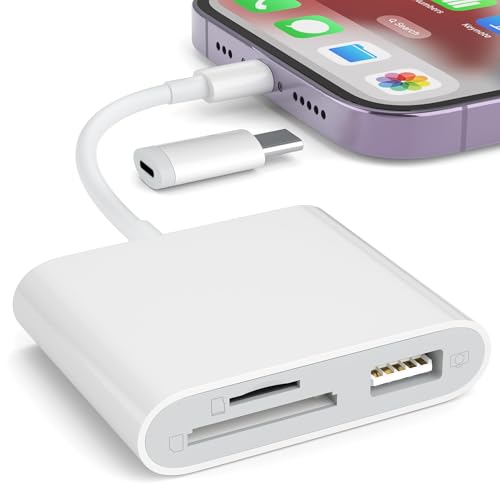
SZHAIYIJIN SD Card Reader for iPhone, Memory Card Reader with USB Camera Adapter Plug and Play Trail Game Camera Viewer Supports SD and TF Card MicroSD Card Adapter for iPad No App Required
Check price on Amazon
Stealth Cam Connect Max 3.0 Cellular Trail Camera, Wireless Game Surveillance with Advanced Connectivity
Check price on Amazon
USB C SD Card Reader, Digital Camera Adapter iPhone 18, Trail Camera SD Card Reader USB C Memory Card Reader for iPhone 17/16/15/iPad/MacBook/iMac/Galaxy/Android
Check price on Amazon
Tapo 2K Pan Tilt Security Camera for Baby Monitor, Dog Camera, C210 | Motion Detection, 2-Way Audio Siren, Night Vision, Cloud &SD Card Storage, Works with Alexa & Google Home
Check price on Amazon
Stealth Cam Connect Max 2.0
Check price on AmazonMastering Camera Connect for a Seamless Workflow
Connecting your camera to your smartphone or computer is a game-changer for modern photography. It streamlines your workflow, enables instant sharing, and opens up new creative possibilities like remote shooting. By understanding the different connection methods, following the setup steps, and knowing how to troubleshoot, you can ensure a reliable connection every time. Whether you're a professional photographer needing to deliver images quickly or a hobbyist wanting to share moments instantly, mastering camera connectivity is an essential skill. Explore our other guides to continue enhancing your photography journey.